


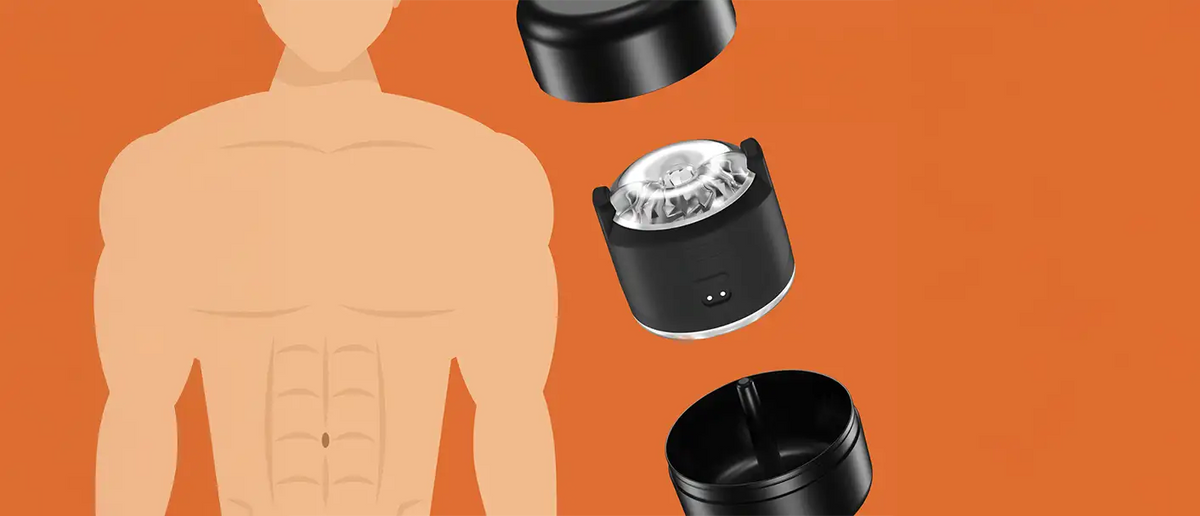
The Kiiroo PowerShot is a pocket-sized dual-motor vibrator, small enough to disappear in a travel bag, powerful enough to punch above its size. If you are learning how to use the PowerShot, this article walks through: unboxing, charging, connecting to the FeelConnect app, the three ways to use it, and the stamina training features that turn it into a personal endurance trainer.
What Is the Kiiroo PowerShot?
The Kiiroo PowerShot is an ultra-compact, dual-motor vibrating stroker designed for both solo and interactive use. Its squeeze-friendly ergonomic body allows you to manually adjust pressure, squeeze harder for tighter contact and more intensity. Built fully waterproof and rechargeable via a magnetic USB cable, it is versatile enough for quick sessions or longer training routines.
The device operates in three distinct modes: standalone (Manual mode), app-controlled (Connected mode), or offline custom patterns (Custom mode). It works seamlessly with the FeelConnect app and is fully compatible with Kiiroo's guided stamina programs.
What's in the Box
-
PowerShot device
-
Travel case (discreet, protected storage)
-
Crystal-clear mini sleeve (pre-installed)
-
Magnetic USB charger
-
Quick-start guide
The travel case is small enough for a jacket pocket, one of the reasons PowerShot travels exceptionally well.
Pro-tip for sleeve care: After washing your mini sleeve, apply FeelNew Refreshing Powder to keep the material silky smooth, non-sticky, and ready for your next session.

Getting Started: Charging First
Before exploring how to use the PowerShot, fully charge your device for roughly 2 hours. The included magnetic USB charger snaps directly into the charging port on the base of the device.
The onboard LED light indicates real-time charge status:
-
Fast red blinking: 0–10% charge
-
Slow red blinking: 11–20% charge
-
Orange blinking: 21–50% charge
-
Yellow blinking: 51–80% charge
-
Green blinking: 81–95% charge
-
Solid green: 96–100% (fully charged)
While your device charges, download the FeelConnect app on your iOS or Android device. Open the app to register your device and set up your user profile.
Three Ways to Use the PowerShot
The Kiiroo PowerShot has three modes. Which one you use depends on what you're doing right now. Review the comparison table below to find the right mode for your session.
|
Mode |
Needs app? |
Best for |
|
Connected (Bluetooth) |
Yes, active connection |
Interactive content, partner play, live cam |
|
Custom (saved) |
Setup once, then offline |
Your one favorite pattern, no phone nearby |
|
Manual (preset) |
No |
Quick sessions, travel, first-time use out of the box |
Connected Mode (Bluetooth)
Connected mode delivers real-time app integration for interactive sessions.
-
Hold the main multifunction button for 3–4 seconds to power on. The LED turns solid white, then blinks blue to show it is in pairing mode.
-
Open the FeelConnect app and select PowerShot from your device list. The LED changes to solid blue once paired.
-
Tap "Test Connection" inside the app to confirm control.
Once connected, you can access three key features:
-
Interactive content: Sync motor vibration with Kiiroo-supported videos.
-
Long distance partner play: Hand control over to a partner remotely anywhere in the world.
-
Live cam sessions: Real-time feedback synced with interactive webcams.
Custom Mode (Your Saved Pattern)
Custom mode offers a middle ground: you get custom motor settings without needing an active phone connection during your session.
To set up your device, follow the initial pairing steps under Connected mode. In the FeelConnect app, navigate to "Let's Get Started" to build a pattern. You can choose from four waveforms (pulse, sine, saw, linear) and adjust motor intensity, rhythm, and duration for both motors independently. Save your creations in the app, select your favorite, and tap "Save to Toy" to transfer it to the device's internal memory.
Once saved, disconnect from the app. Press the power button once until the LED blinks yellow; your custom pattern will play offline.
Note: Saving a new pattern overwrites the previous one on the device, as internal memory holds one custom pattern at a time. If no custom pattern is uploaded, pressing the button bypasses the yellow slot and goes straight to Manual mode.

Manual Mode (5 Offline Presets)
Manual mode is the fastest way to learn how to use the PowerShot without relying on a phone or app connection.
Power on the device, then click the button once to enter Manual mode. The LED will blink purple. Each subsequent click cycles through five pre-programmed settings:
-
Low intensity: 28% power
-
Medium intensity: 54% power
-
High intensity: 100% power
-
Cycle vibration: Reversed wave pattern alternating between both motors
-
Reverse pulse: Opposing timed pulses between top and bottom motors
Double-clicking the button pauses vibration (the LED blinks purple continuously), while holding the button for 3–4 seconds powers the device off completely.

PowerShot in the Kiiroo Ecosystem
While the PowerShot functions as a compact, standalone stroker, it truly shines when integrated into Kiiroo’s broader modular ecosystem.
-
PowerShot Compatible Stroker Case: Adapts the PowerShot to host non-Kiiroo and FeelStar sleeves, turning the compact motor into the foundation for a full-sized setup.
-
Combine with Keon or PowerBlow: Via the Stroker Case, you can stack the PowerShot’s high-frequency vibration directly with automated thrusting or vacuum suction for multi-sensory play.
-
Interactive content sync: Connect via Bluetooth to Kiiroo's Interactive Content platforms, or leverage FeelMe AI to translate non-scripted videos into real-time physical feedback.
-
VR: Sync the PowerShot with virtual reality content using the FeelConnect app alongside headsets and platforms like the Kiiroo VR Box.
PowerShot works solo, but it works even better as part of the wider Kiiroo lineup.
Stamina Training with PowerShot
Unlike standard pocket vibrators, the Kiiroo PowerShot supports dedicated stamina training routines directly within the FeelConnect app. Knowing how to use the PowerShot for endurance work gives you access to three distinct modules:
-
Endurance Test: Measures how long you can maintain stimulation before reaching climax, logging data to track performance over time.
-
Edging Program: Delivers automated, structured stop-start vibration patterns to help pace your stimulation without manual adjustments.
-
Pelvic Strengthening: Guided routines targeting the pelvic floor muscles to build control.
Stamina work isn't about doing something once, it's about doing it repeatedly. The Endurance Test's graph is what makes this useful: you can actually see the improvement instead of guessing whether you're getting better.
For a deeper walkthrough on stamina training methodology and pairing PowerShot with different exercises, see our full stamina training guide.
When to Use PowerShot: 5 Scenarios
-
On the road: The compact body and protective travel case make it easy to pack for hotel sessions without extra clutter.
-
Between the sheets, no phone: Manual mode requires a simple press of a button, letting you get straight to your session in 30 seconds.
-
Stamina training days: Use the dedicated app routines and progress tracking for controlled endurance practice.
-
Long distance sex toys play: Pair via Bluetooth so your partner can control your speed and patterns remotely from anywhere.
-
Interactive content & creator sessions: Sync vibrations directly to interactive adult media or live creator streams in real time.

How to Use the Keon Accessories: A Complete Setup Guide
How to Use the PowerBlow by Kiiroo